Managing objects#
Accessing objects#
As you add objects to the octarine.Viewer, you might want to keep track of them so you can e.g. colorize or remove them at a later point.
Unless specified, each object gets a generic identifier:
>>> duck = tm.load_remote(
...         'https://github.com/mikedh/trimesh/raw/main/models/Duck.glb'
...     )

>>> # Add the duck
>>> v.add_mesh(duck)
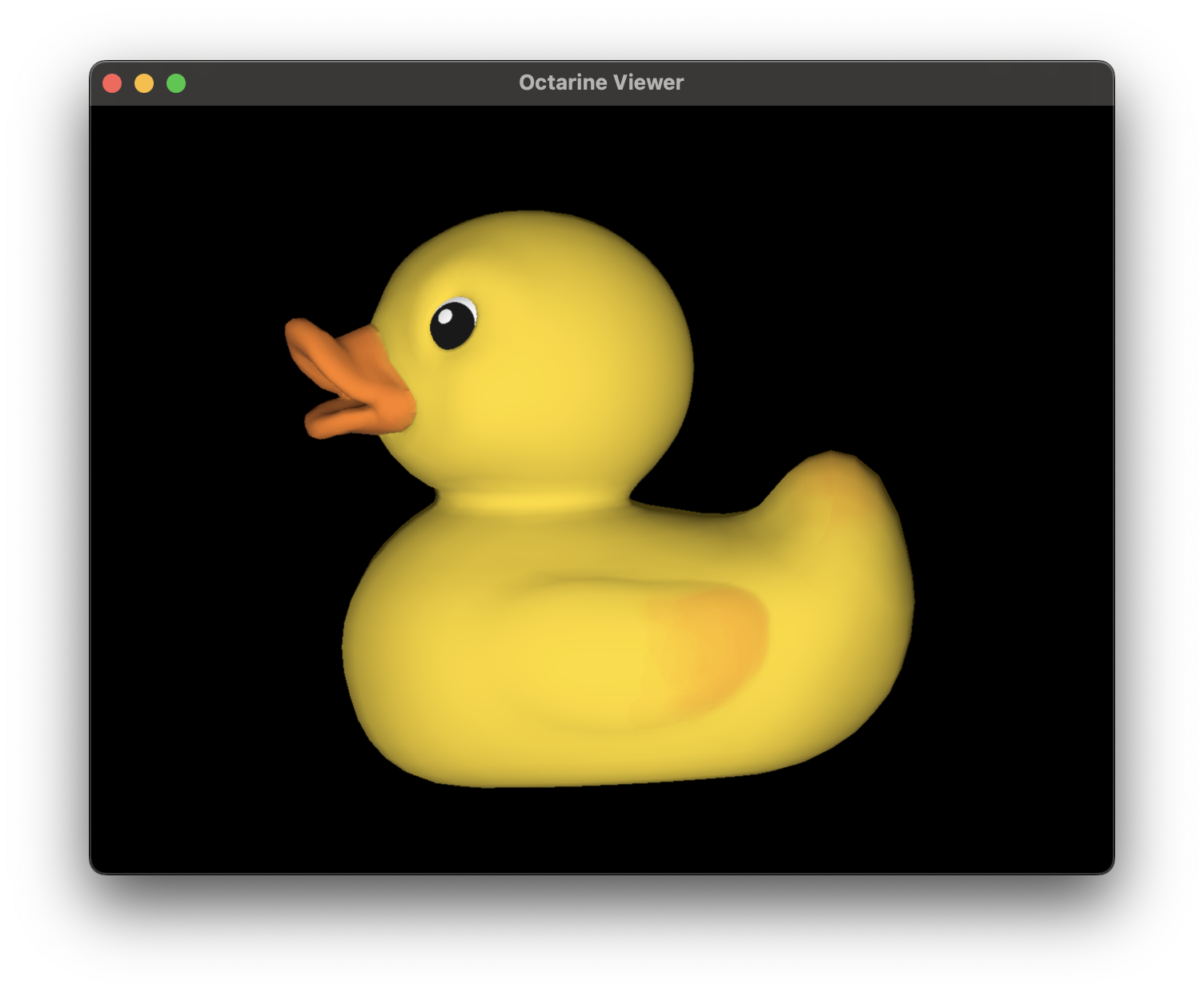
Let's check what objects are there:
>>> v.objects
OrderedDict([('Object', [<pygfx.Mesh at 0x37f4f8b90>])])
The .objects property will return a dictionary mapping IDs to pygfx visuals.
Alternatively, you can also do this:
>>> v['Object']
[<pygfx.Mesh at 0x37f4f8b90>]
Instead of generic IDs, we can also explicitly set the ID:
>>> v.add_mesh(duck, name='Duck')
>>> v.objects
OrderedDict([('Duck', [<pygfx.Mesh at 0x37f5f8a12>])])
This can also be used to combine multiple objects under the same ID.
Grouping objects#
In addition to their ID, objects can be assigned to a group:
>>> v.add_mesh(duck, name='Duck', group='Birds')
>>> v.add_mesh(bunny, name='Bunny', group='Mammals')
Groups currently serve two purposes:
-
The
octarine.Viewer.objects_groupedproperty returns an ordered dictionary mapping group names to object IDs (ungrouped objects are omitted):>>> v.objects_grouped OrderedDict([('Birds', ['Duck']), ('Mammals', ['Bunny'])]) -
In the control panel, grouped objects appear as collapsible legend entries which you can show/hide or colorize as one.
Modifying objects#
Why are the object IDs discussed above relevant? Well, they help you manipulate objects after they've been added:
>>> v.set_colors({'Duck': 'w'})
>>> v.hide_objects('Duck')
>>> v.remove_objects('Duck')
You can also temporarily highlight objects by brightening their color:
>>> v.highlight_objects('Duck')         # brighten by a default amount
>>> v.highlight_objects('Duck', color='red')  # ... or use an explicit color
>>> v.unhighlight_objects()             # remove all highlights
Pinning objects#
Pinned objects ignore changes to their color, visibility or transparency:
>>> v.pin_objects('Duck')
>>> v.set_colors('red')   # this will not affect the pinned duck
>>> v.unpin_objects()     # unpin all objects again
This is useful when you want to keep e.g. reference objects fixed while restyling or cycling through the rest. Use the Viewer.pinned property to check which objects are currently pinned.
Moving objects interactively#
You can designate a single object to be moved interactively:
>>> v.moveable_object = "Duck"
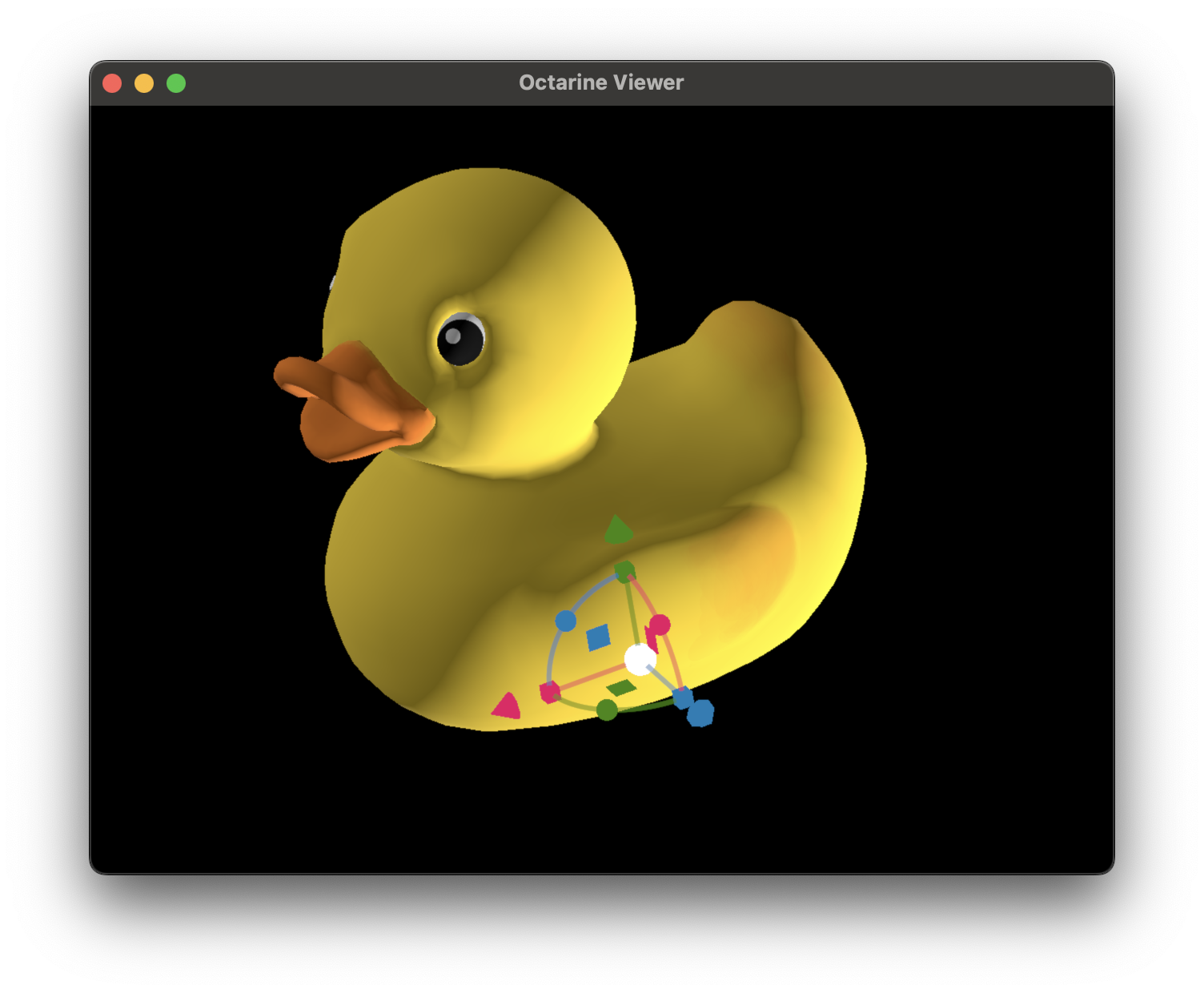
To remove the transform widget again simple do:
>>> v.moveable_object = None
What next?#
-
Objects
Manipulate viewer and objects (color, size, visibility, etc).
-
Selection
Selecting objects on the viewer.