Render triggers#
This vignette will teach you about render triggers and how to make your viewer more efficient.
To illustrate the principle, let's generate this scene:
import octarine as oc

viewer = oc.Viewer()

# Make 3 cubes that are slightly offset against each other
import pygfx as gfx
for i in range(3):
    color = ['red', 'green', 'blue'][i]
    cube = gfx.Mesh(
        gfx.box_geometry(200, 200, 200),
        gfx.MeshPhongMaterial(color=color),
    )
    cube.local.x = 300 * i
    viewer.add(cube, name=f"{color} cube")
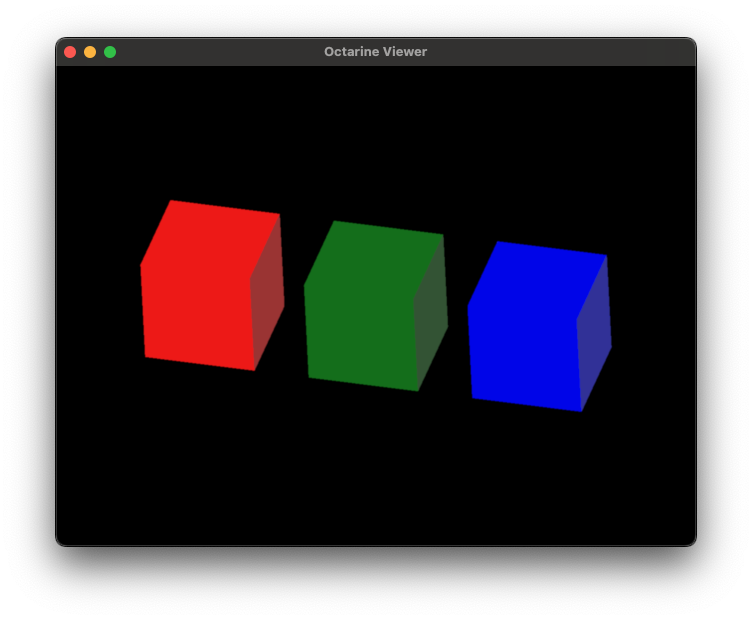
If you now open your Activity Monitor (OSX), Task Manager (Windows) or whatever your system uses and isolate the Python process, you may notice that it uses a fair amount of CPU and GPU even though nothing much is happening:

Note
It's possible that the CPU/GPU usage goes down if the viewer is minimized or covered by other windows.
That's because the octarine.Viewer continuously renders new frames up to the maximum frame rate (30 FPS by default). You can decrease the maximum frame rate by setting viewer.max_fps = 15 but that will make interacting with the viewer less smooth.
A better solution is to change the render trigger from continous to reactive:
viewer.render_trigger = "reactive"
This tells the viewer to only trigger rendering of a new frame if the scene has actually changed - for example when the camera has moved or you added a new object. As a consequence, you should see your CPU/GPU load go down to almost zero when not interacting with the viewer:

Important: Reactive rendering has a few caveats! Because we're not greedily rendering new frames whenever we get the chance, we have to rely on a complex-ish system of signals that tell our Viewer when things have changed and it's time to compute a new frame. Interacting with the viewer - moving the camera included - will correctly trigger a re-render but if you encounter a situation where the viewer should update but doesn't, please open an issue on Github!
Also, if you are running e.g. custom animations outside of the Viewer.add_animations hook you may have to manually tell the viewer to re-render by setting viewer._render_stale = True. That flag doubles as the wake-up call: between frames the canvas is allowed to go to sleep entirely, and setting it asks for a new frame.
Animations registered via Viewer.add_animation keep the loop running for you: they are called once per frame, so the canvas is kept awake for as long as one is registered - whether or not it asked for a re-render (req_render=False only says that running it doesn't dirty the scene, which is what you want for an animation that polls for work and adds objects when it finds some). The flip side is that a registered animation stops the viewer from ever idling, so remove it again once it's done its job.
The same goes for moving the camera from code: methods like Viewer.set_view and Viewer.center_camera take care of it themselves, but if you reach for the camera directly (e.g. viewer.camera.zoom = 2) while the canvas is asleep, nothing is there to notice - so set viewer._render_stale = True afterwards.
Active window
There is a third option, active_window, which pauses rendering when the Window isn't active. However, this currently only works if you are using the PySide6 backend.