Selecting objects#
This section will demonstrate how to select objects in your viewer. Octarine offers two options:
- "Picking" by clicking on individual objects
- Drawing a selection rectangle to select objects
Picking#
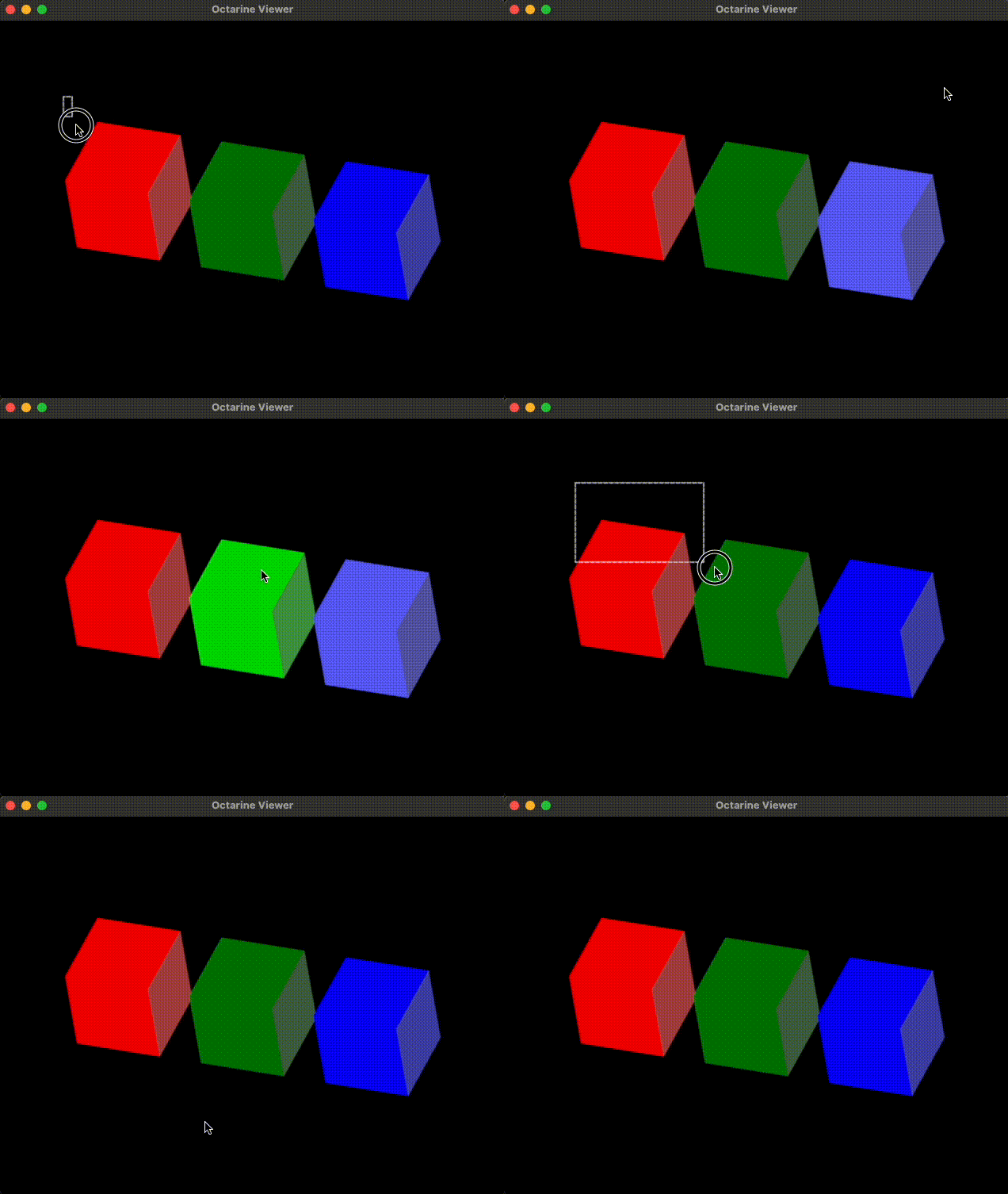
Octarine wraps pygfx's basic picking system. This allows you to easily select objects by double clicking on them:
v = oc.Viewer()

# Make 3 cubes that are slightly offset against each other
import pygfx as gfx
for i in range(3):
    color = ['red', 'green', 'blue'][i]
    cube = gfx.Mesh(
        gfx.box_geometry(200, 200, 200),
        gfx.MeshPhongMaterial(color=color),
    )
    cube.local.x = 300 * i
    v.add(cube, name=f"{color} cube")

# Tell viewer to select objects on double click
v.on_double_click = "select"
Viewer.on_double_click accepts the following values:
None: do nothing (default)"select": select/deselect the object"hide": hide the object (use e.g.octarine.Viewer.unhide_objectsto bring it back)"remove": remove the object from the viewer- a custom function; see below
Selection color
You can change the color used to highlight selected objects:
v.highlight_color = "purple"
Alternatively, you can also adjust the behavior when hovering over objects:
# Highlight objects when hovering over them
v.on_hover = "highlight"
Pickability
Setting on_double_click or on_hover automatically makes all objects pickable (i.e. sets material.pick_write = True on their materials). You can also toggle this manually via the Viewer.objects_pickable property.
The current selection is available through the Viewer.selected property; similarly, Viewer.highlighted tells you which objects are currently highlighted.
Custom callbacks#
on_double_click also accepts a custom function. It will be called with the pygfx event and the viewer whenever an object is double-clicked:
def on_pick(event, viewer):
    """Print the name of the object that was double-clicked."""
    # The pygfx visual that was clicked on (None if empty space)
    visual = event.pick_info["world_object"]

    # Map the visual back to its object ID
    for name, visuals in viewer.objects.items():
        if visual in visuals:
            print(f"You clicked on {name!r}")

v.on_double_click = on_pick
Have a look at octarine.viewer.handle_object_event - the function behind the built-in presets - as a template for writing your own callbacks. pygfx makes it ridiculously easy to hook into the event system. We're also happy to extend the current list of options - please open a Github Issue if you have suggestions!
Last but not least, these settings can also be accessed through the control panel:

Drawing Selections#
In this section you will learn to hook up a selection widget to a viewer to make more complex selections.
We'll start by importing octarine and the SelectionGizmo:
import octarine as oc
from octarine.selection import SelectionGizmo
Next, we will instantiate the viewer and add a few cubes:
v = oc.Viewer()

# Make 3 cubes that are slightly offset against each other
import pygfx as gfx
for i in range(3):
    color = ['red', 'green', 'blue'][i]
    cube = gfx.Mesh(
        gfx.box_geometry(200, 200, 200),
        gfx.MeshPhongMaterial(color=color),
    )
    cube.local.x = 300 * i
    v.add(cube, name=f"{color} cube")
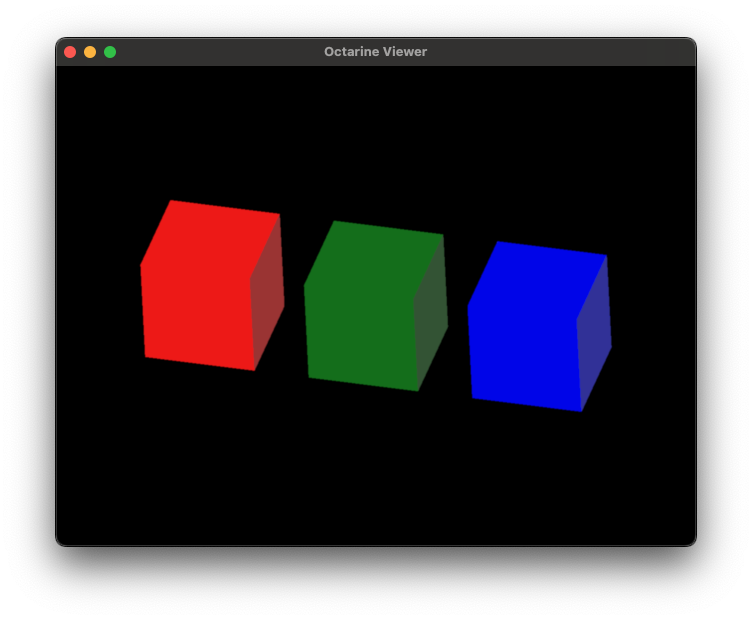
Note that we have given our cubes some useful names:
>>> v.objects
OrderedDict([('red cube', [<pygfx.Mesh  at 0x3565dca10>]),
             ('green cube', [<pygfx.Mesh  at 0x356441f10>]),
             ('blue cube', [<pygfx.Mesh  at 0x14ef4c450>])])
Next, we will add a SelectionGizmo to the viewer:
# Instantiate the gizmo and link it to our viewer
sel = SelectionGizmo(viewer=v)
Now if you hold Shift and click & drag on the viewer, you should see a selection rectangle being drawn:
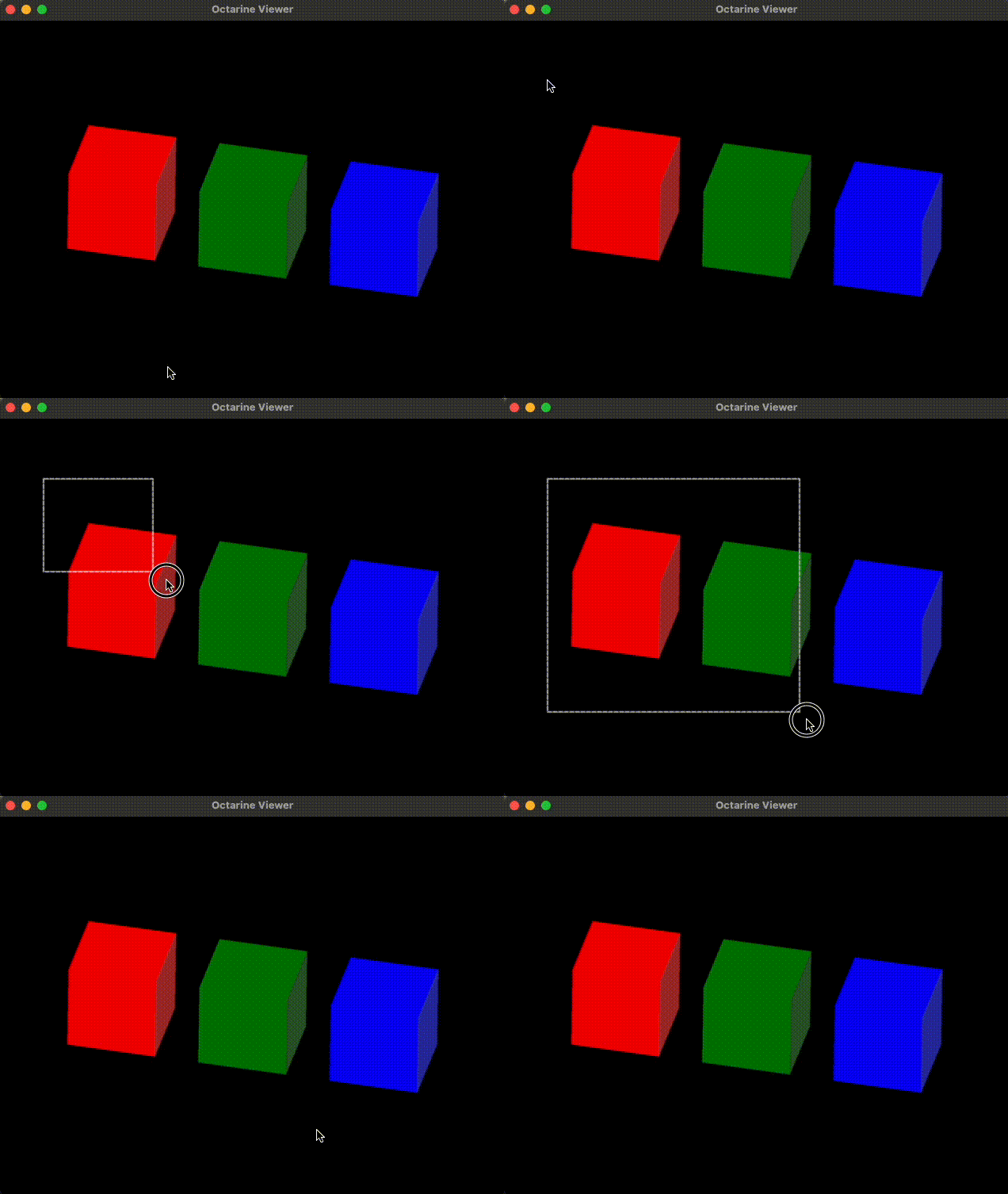
Other than that nothing happens. That's because we haven't told the SelectionGizmo what do do once a selection has been made. For that, we need to attach a callback function that accepts a dictionary describing the selection. Let's write a little function that just prints the content of that dictionary and attach as callback:
from pprint import pprint

def print_selection(sel_dict):
    pprint("Selection made:")
    pprint(sel_dict)

sel.add_callback(print_selection)
Now if we make a selection, you should see something like this in your console:
'Selection made:'
{'blue cube': {'clipped': False,
               'contained': False,
               'objects': [{'clipped': False,
                            'contained': False,
                            'data': None}]},
 'green cube': {'clipped': True,
                'contained': False,
                'objects': [{'clipped': True,
                             'contained': False,
                             'data': array([False, False, False, False, True, True, True, True, True, False, True, False, False, True, False, True, True, False, True, False, False, True, False, True])}]},
 'red cube': {'clipped': True,
              'contained': True,
              'objects': [{'clipped': True, 'contained': True, 'data': None}]}}
If you look closely, you will see that the selection rectangle:
- missed the blue cube
- clipped the green cube
- fully contained the red cube
For the clipped green cube, the dictionary gives us an array (data) that tells us which vertices of the cube were in- (True) and which were outside (False) of the selection box.
Let's do something more elaborate and add a callback that highlight cubes that we selected:
def highlight_selection(sel_dict):
    # First unhighlight all currently highlighted objects
    v.unhighlight_objects()

    # Now highlight the selected neurons
    v.highlight_objects([ob for ob, props in sel_dict.items() if props['clipped'] is True])

sel.add_callback(highlight_selection)